

Learn how to bulk edit custom order fields in WooCommerce without opening orders one by one. When several orders need the same internal priority, production stage or planned dispatch date, editing each order individually adds unnecessary work.
In this guide, you’ll learn how to bulk edit custom internal order fields in WooCommerce with Order Workspace Pro. The important distinction: this edits fields created by Order Workspace. It is not a universal bulk editor for arbitrary order metadata added by other plugins.
Example: update the priority on several orders
Imagine that five personalized orders now require special attention. Instead of editing them individually, you want to set the Priority field to High for those five orders, while leaving the other orders unchanged.
Before using Pro, create a Priority Select field with Order Workspace Free, add suitable options such as Normal, High, and Urgent, and use it on eligible orders. Free already lets you edit each supported order individually, display the field as a column, and search or filter its values.
If you’re starting from scratch, see our guide to internal order fields. If you organize made-to-order products, our production workflow tutorial gives an example of what these fields can represent.
1. Check which orders can be edited
Order Workspace uses WooCommerce permissions and its own order-editability checks. In the current version, the default editable order statuses are Pending payment, Processing, and On hold. Completed, Cancelled, Refunded, and custom statuses are read-only by default, including in Pro.
Choose a field that supports bulk editing, such as the Priority Select field in this example. Supported Pro field types include Text, Number, Select, Yes/No, and Date. Long text is not included in Pro bulk editing v1.
The user also needs permission to edit the individual orders. A bulk operation does not bypass order-level access restrictions.
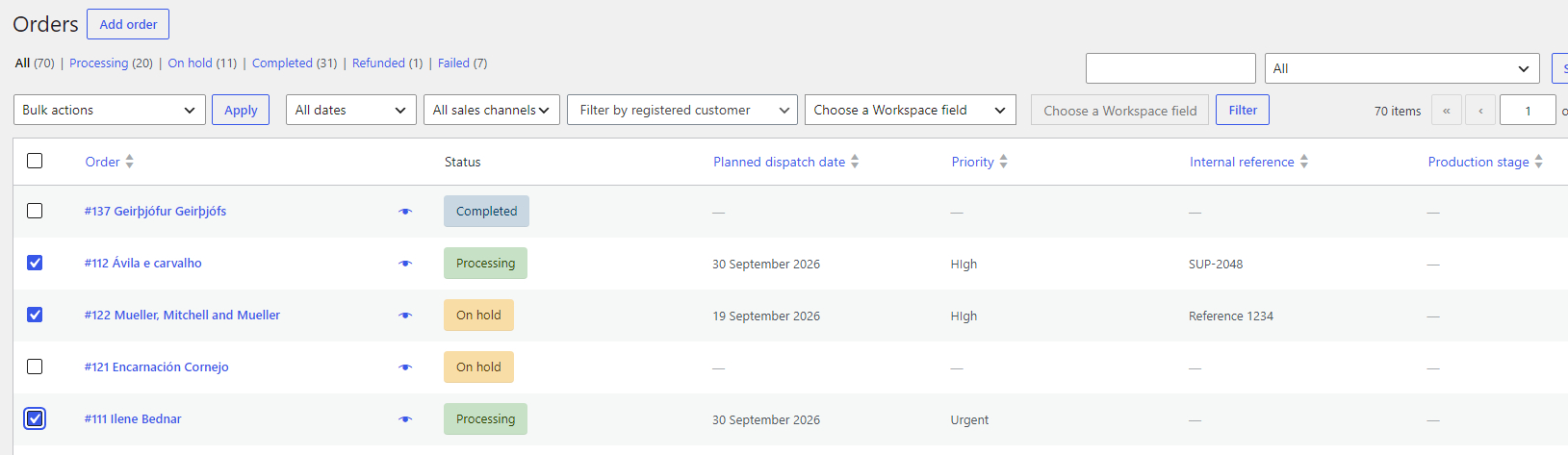
2. Find and explicitly select the target orders
Open WooCommerce → Orders. Use the available search, sorting, and Workspace filtering tools to identify orders that need a change. Pro can combine Workspace filter conditions when a single filter is not enough.
Then tick the checkboxes for the orders you actually intend to update. Selection is explicit: seeing a filtered result does not mean all matching orders across every page will be updated. Check the selection count before proceeding.
3. Open the Workspace bulk editing action
With the target orders selected, open the Workspace bulk editing action available from the Orders screen. Choose the internal field Priority and set its new value to High.
Review the field, chosen value, and number of selected orders before applying the operation. A bulk change deliberately overwrites the selected field’s previous value on orders that pass validation.
Order Workspace Pro also supports setting or clearing supported field values where the field and validation rules allow it. Do not clear values unless that is the result you intend.
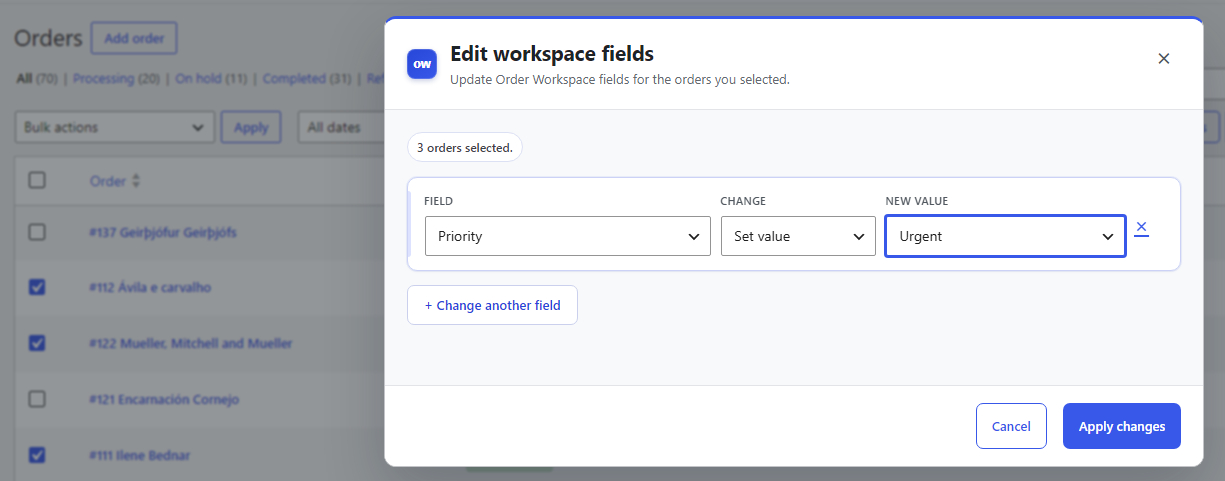
4. Apply the change and verify the results
Run the bulk action and wait for its result summary. Check how many orders were updated and whether any failed. A partially successful request is not the same as a complete success.
Return to the Orders list and review the Priority column or reopen an affected order if you need to confirm its saved value.
If an order was not updated, check its status, editing permissions, whether the field is available, and any validation error reported. Correct the reason before making another deliberate attempt; don’t assume a network error means no values were saved.
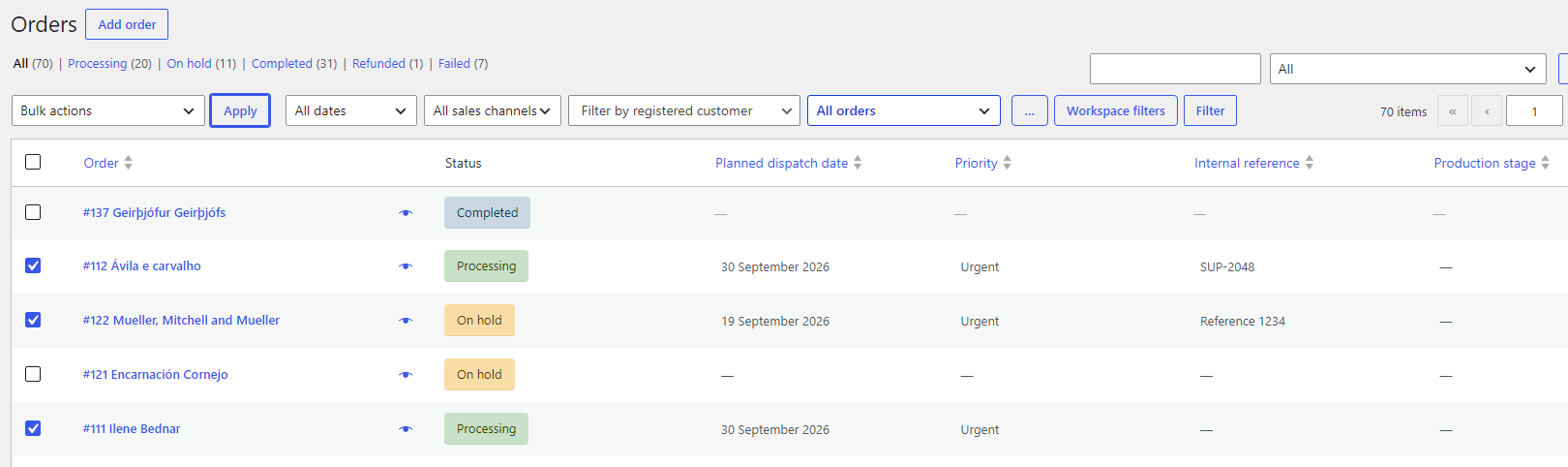
5. What are the limits?
The current Pro bulk editing workflow is intentionally bounded to keep changes predictable:
- Up to 100 explicitly selected orders per operation.
- Up to 10 field changes per operation.
- Changes are processed in controlled internal batches rather than updating every matching order across the entire store.
- Only supported Order Workspace fields can be changed, not arbitrary third-party order metadata.
- Order status, field rules, user permissions, and value validation still apply to every order.
- Some orders can succeed while others fail; review the final result.
Bulk editing does not create a scheduled task, update WooCommerce order statuses, or provide a universal undo function. If a change was incorrect, verify the current values before applying a new correction.
When bulk editing is useful
- Priority changes: mark a checked selection of orders as High after reviewing today’s workload.
- Production stages: change selected made-to-order purchases to Quality check when staff confirm they have reached that stage.
- Internal reference values: apply a shared supported value only when it is genuinely correct for all selected orders.
- Planning dates: set the same internal target date for a selected batch, rather than implying that all orders can automatically be scheduled.
For repetitive daily work, combine bulk editing with Pro’s inline editing, multiple Workspace filters, and personal Saved Views. For example, reopen a view showing in-production orders with high priority, select only the orders that have changed, and apply the appropriate update.
Frequently asked questions
Can I bulk edit fields created by another WooCommerce plugin?
No. Order Workspace Pro bulk editing applies to supported fields defined by Order Workspace itself.
Does selecting a page edit every order matching my filters?
No. Only the selected orders are targeted, subject to the operation limit and validation. Check the selection and count before applying a change.
Can I bulk edit Completed or custom-status orders?
Not by default in the current version. Those statuses are read-only for Workspace field editing. Permissions also apply per order.
Can a bulk operation partially fail?
Yes. Review the result summary and any reported failures. Do not assume all selected orders changed successfully.
Try bulk editing with your own workflow
Start with Order Workspace Free to create internal fields and organize the Orders screen. When updating selected orders one by one becomes repetitive, the optional Pro add-on provides bulk editing and other productivity features.
Try the live Pro demo · View Pro plans and pricing · Compare Free and Pro