

A WooCommerce order production workflow helps made-to-order stores track which orders are waiting, in production, or ready to dispatch. Instead of relying on scattered notes or spreadsheets, your team can review internal production information alongside each WooCommerce order.
In this guide, you’ll use Order Workspace Free to create production stages, set priorities and planned dispatch dates, and review everything in the Orders list. You’ll also see when Pro’s editing and filtering tools can help.
What we are going to organize
Imagine a small shop producing customized gifts after orders are placed. Staff need a consistent answer to three questions: What stage is this order at? When do we plan to dispatch it? And which orders need attention first?
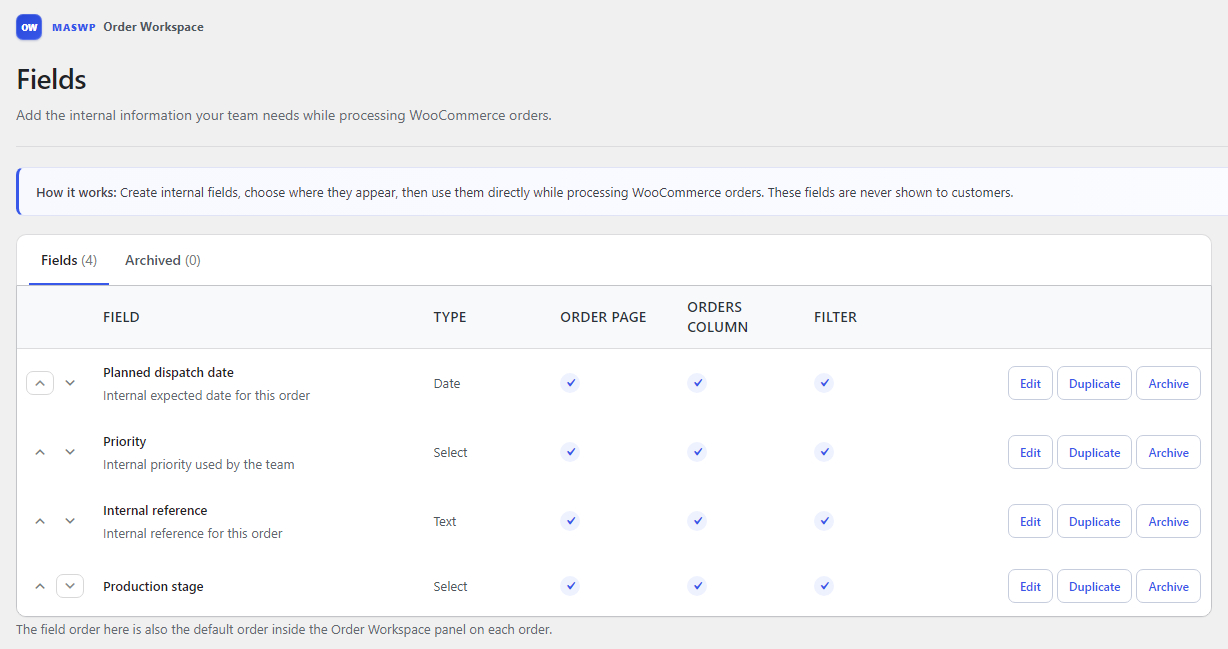
- Production stage — a Select field for the team’s current step.
- Planned dispatch date — a Date field for an internal scheduling target.
- Priority — a Select field such as Normal, High, or Urgent.
These are example fields you create, not predefined WooCommerce production features. The planned date is not a customer delivery promise. This setup does not trigger reminders, alter shipping, or automatically move orders to another stage.
1. Create a Production stage field with Free
With WooCommerce and Order Workspace Free activated, open WooCommerce → Order Workspace and select Add Field. Enter Production stage as the label and choose Select as the field type.
Create these options in the order that makes sense for your team:
- Waiting for materials
- Ready for production
- In production
- Quality check
- Ready to dispatch
Enable the field on the individual order screen, as a column in the Orders list, and as an available filter. Save the field definition.
Using a Select field matters: staff choose from the same vocabulary, so filtering by Waiting for materials won’t miss orders because someone entered a different spelling.
New to creating internal order fields? Follow the introductory guide to WooCommerce internal order fields for the field basics. This article focuses on the production workflow rather than repeating that setup in detail.
2. Add Planned dispatch date and Priority
Create a second field called Planned dispatch date with type Date. Show it on orders and in the Orders list. This gives staff a date they can read and sort alongside each order.
Then create a Priority Select field with the options Normal, High, and Urgent. Enable order-page editing, its Orders column, and filtering if those are useful to your team.
If you already have a Priority field from our first tutorial, reuse it instead of creating a duplicate. Keep the configuration small: three fields that staff will actually update are better than a complicated workflow that quickly becomes outdated.
3. Update the planning information on an order
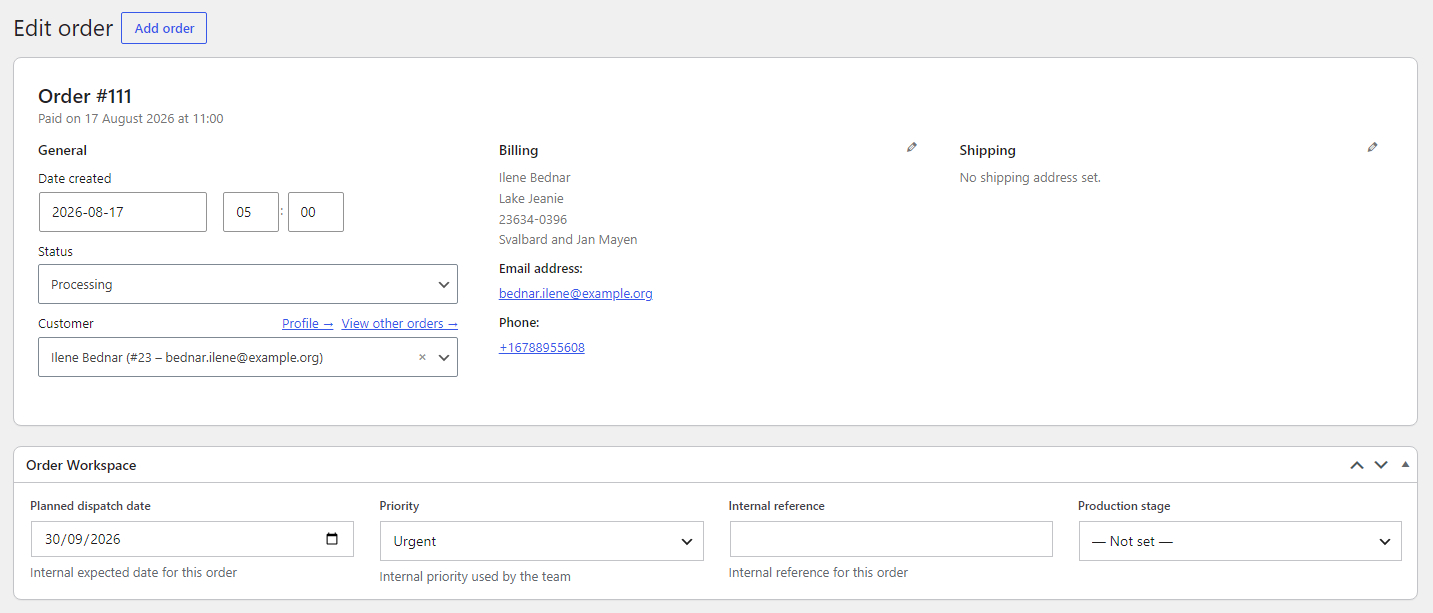
Open an eligible order in WooCommerce. In its Order Workspace fields, enter the current production stage, set the planning date, and choose its priority. Save the order.
For example, an order can remain Processing in WooCommerce while its internal Production stage is In production, its Priority is High, and its Planned dispatch date is recorded for staff reference.
Important distinction: Production stage is your own internal Select field. It does not create or modify WooCommerce statuses, payment handling, customer notifications, or fulfillment operations.
By default, Order Workspace allows editing values on orders with Pending payment, Processing, or On hold status, subject to permissions. Completed, Cancelled, Refunded, and custom statuses are read-only in the current version. Check that your real workflow fits this limitation before relying on it.
4. Review the team’s work from WooCommerce Orders
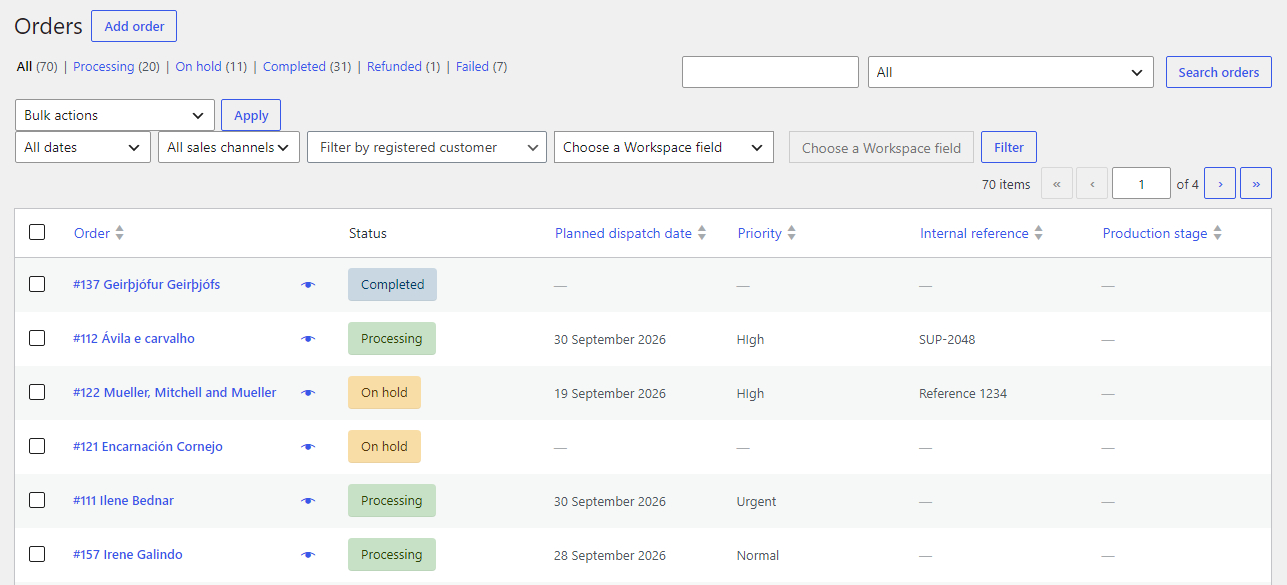
Go to WooCommerce → Orders. With the three Workspace columns enabled, staff can review stage, priority, and planned date without opening every order just to read those values.
With Free, choose Production stage as the Workspace filter and select Waiting for materials. The resulting list gives you a focused view of orders at that step. You can also sort the supported Planned dispatch date column to examine earlier planned dates.
Remember that the Free filter applies to one Workspace field at a time. Filtering across multiple Workspace conditions is a Pro capability.
5. Where Order Workspace Pro helps
Free already handles the essential workflow: define fields, enter values on editable orders, display useful columns, search, sort, and use a single Workspace filter. Pro becomes relevant when those steps are repeated across multiple orders every day.
- Inline Editing: update supported field values directly from the Orders list, without opening each order.
- Bulk Editing: select eligible orders and apply the same supported field change to them in one operation.
- Multiple Filters: combine conditions, for example Production stage = In production AND Priority = High.
- Saved Views: save a personal set of filter conditions and return to it during the next review. Views are personal rather than shared across the entire team.
For instance, after checking which orders have really reached the next step, you could select those orders and change their Production stage to Quality check with Pro. The plugin does not decide which orders are finished for you.
Try the interactive Pro demo to see the advanced workflow, or compare Pro plans if repeated order updates are part of your routine.
A simple daily production review
- Review orders at Waiting for materials and confirm what is blocking them.
- Check the earliest planned dispatch dates and confirm which targets are realistic.
- Update the internal stage and priority on the orders that have actually changed.
- Use the Orders list to review the updated information again.
Assign responsibility for keeping the fields current. This works as a lightweight operational checklist, not as an automated manufacturing system.
Frequently asked questions
Does Production stage replace WooCommerce order status?
No. The stage is an internal Order Workspace field. The native order status remains independent.
Will customers see these values?
No. Order Workspace fields in this setup are internal administrative values, not checkout, account, or customer-email fields.
Does it automatically calculate or send the dispatch date?
No. The Date field stores the value entered by your team. It does not calculate lead times or send reminders or shipping notifications.
Do I need Pro?
No. You can build and use the production-stage workflow with Free. Pro provides optional shortcuts for editing and filtering selected orders more efficiently.
Start with a workflow you can maintain
Keep the stages simple, define who updates them, and use the Orders list as your team’s daily overview. If your store later needs faster editing of the same internal data across selected orders, consider Pro.
Install Order Workspace Free from WordPress.org · Try the Pro demo · Explore the product