
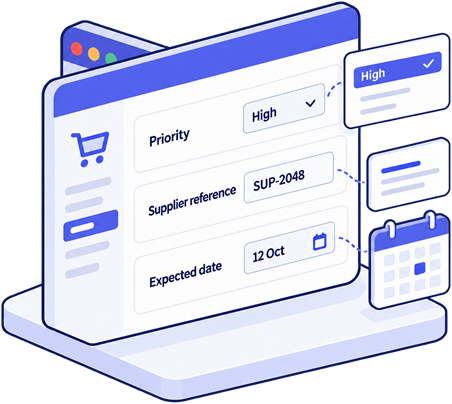
Do you need to track order priorities, supplier references or expected dates in WooCommerce? Keeping these details in spreadsheets or scattered order notes makes them harder to review consistently.
With Order Workspace for WooCommerce, you can create internal order fields, manage their values on individual orders and display them in the Orders list.
This guide walks through a simple setup using Order Workspace Free. You will create three fields: Priority, Supplier reference and Expected date.
What are WooCommerce internal order fields?
Internal order fields store structured information your team uses to process orders. They are managed in WooCommerce administration, rather than entered by customers at checkout.
Typical examples include:
- Priority: identify orders that need attention first.
- Supplier reference: record a reference used by your supplier or purchasing team.
- Expected date: record when preparation is expected to be complete.
- Production stage: track a step in your internal workflow.
Order notes are useful for messages and updates. Fields provide a consistent place for information that you need to review across many orders.
The workflow we will build
Imagine a store that prepares products after receiving an order. Its team needs a quick way to check priority, supplier details and the planned completion date.
We will use these field types:
- Priority — Select: Normal, High or Urgent.
- Supplier reference — Text: a value such as SUP-2048.
- Expected date — Date: the planned completion date.
Start with a few fields that support real decisions. You can expand the setup as your workflow develops.
1. Install Order Workspace Free
In your WordPress dashboard, go to Plugins → Add New and search for Order Workspace for WooCommerce. Install and activate the plugin with WooCommerce active.
Open the Order Workspace field management screen. You can reach it through the plugin’s Settings link on the Plugins screen.
For installation details, see the Order Workspace documentation.
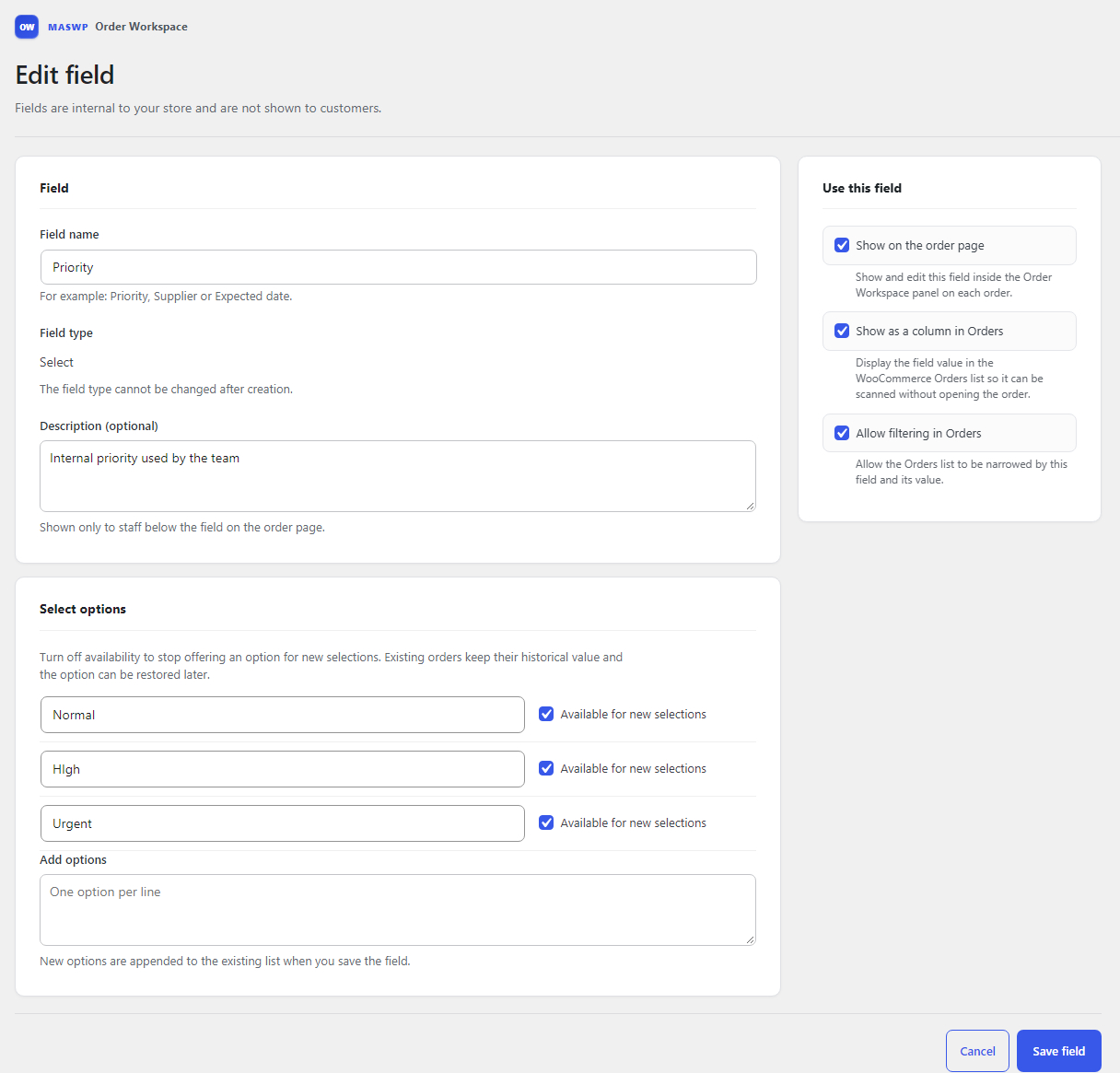
2. Create the Priority field
Click Add Field, enter Priority as the field name and choose the Select type.
Add three options:
- Normal
- High
- Urgent
A Select field gives everyone the same choices. Your team can use “High” consistently instead of entering different descriptions for the same priority.
Enable the field on the order page. Also enable its column and filter options so you can see priorities in the Orders list and filter orders by their priority. Save the field.
3. Add Supplier reference and Expected date
Create a field named Supplier reference and choose the Text type. This allows references containing letters, numbers and punctuation.
Next, create Expected date using the Date type.
Enable both fields on the order page and as columns if you want to review their values in the Orders list.
Order Workspace Free supports six field types: Text, Textarea, Number, Select, Yes/No and Date. Choose the type that matches the information you need to store.
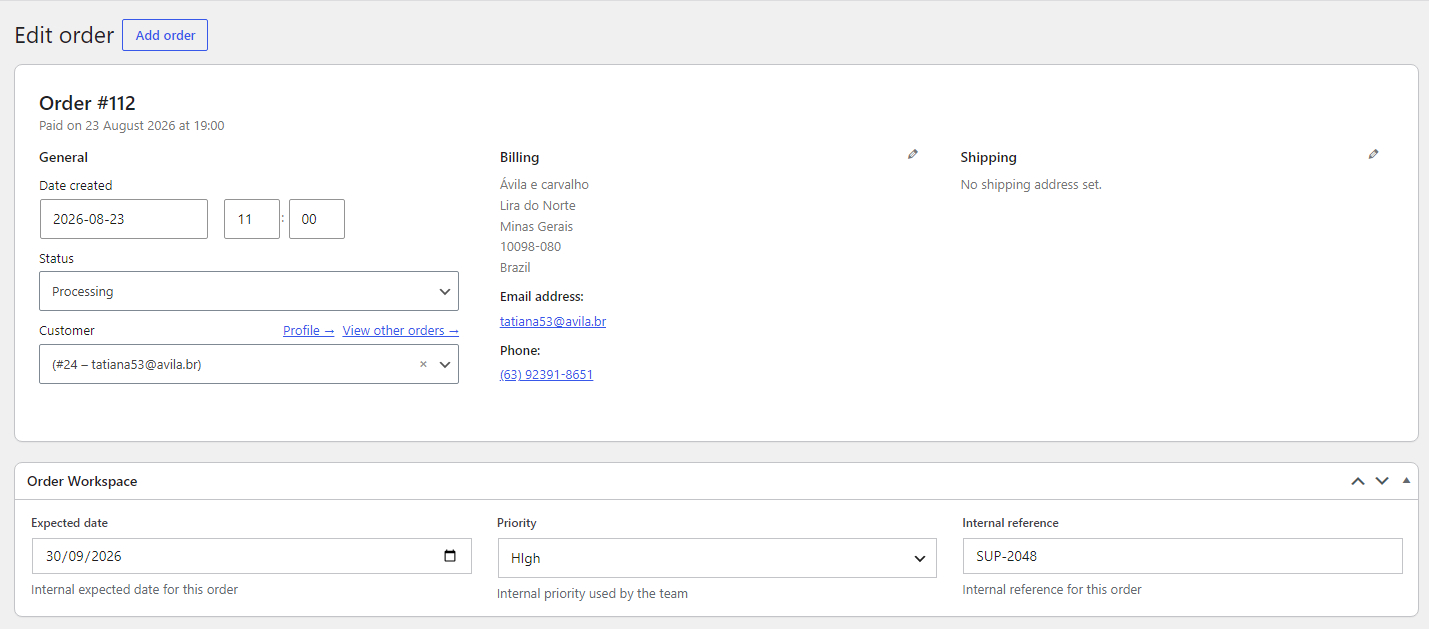
4. Enter values on an order
Open a WooCommerce order and locate its Workspace fields. Select a priority, enter the supplier reference and choose the expected date.
For example, an order might have High priority, the reference SUP-2048 and a planned completion date agreed by your team.
Save or update the order to keep your changes. The information now sits directly on the order it belongs to.
5. Review the information in the Orders list
Return to WooCommerce → Orders. Fields enabled as columns let you review their values alongside your existing order information.
If an enabled column is hidden, check the screen’s column visibility settings. Keep the columns that help your team make decisions visible.
Free also lets you search orders using Workspace field values, sort supported field columns and filter by a Workspace field. For example, use the Priority filter to focus on orders marked High.

What can you do with Free, and when is Pro useful?
Everything in this walkthrough is available in Free: creating the fields, managing values on individual orders, displaying columns and using search, sorting and a Workspace field filter.
Pro adds tools for working more quickly across the Orders list:
- Inline Editing: edit supported field values directly in the Orders list.
- Bulk Editing: update Workspace fields across multiple selected orders.
- Multiple Filters: combine several Workspace field conditions.
- Saved Views: save filter setups and reuse them.
In this example, Pro could help you change the priority of several selected orders or reuse a combination of filters that your team checks regularly.
Start with Free to organize your information. Consider Pro when these additional tools would make your daily work easier.
Frequently asked questions
Does this add fields to the checkout?
No. These are internal fields managed in WooCommerce administration. This setup does not ask customers to enter additional information at checkout.
Do I need Pro to create these fields?
No. Priority, Supplier reference and Expected date can all be created and used with Order Workspace Free.
Can I stop using a field without losing its data?
Yes. You can archive a field and restore it later without losing its saved order data. Permanent deletion is a separate action.
Does Order Workspace support HPOS?
Yes. Order Workspace supports WooCommerce High-Performance Order Storage (HPOS) and legacy order storage.
Create your first internal order workflow
Choose the information your team needs regularly, create a small set of fields and use them consistently. You can start with this example and adapt it to your store.
Explore more WooCommerce order workflows
Once you’ve created your internal fields, learn how to use them in a practical WooCommerce production workflow with priorities, production stages and planned dispatch dates.
If your team needs to update multiple orders more efficiently, follow our guide to bulk editing custom order fields with Order Workspace Pro.
Get Order Workspace Free or explore the product and its live demo.